
School Account Admin- Account Management Menu
As a School Account admin, you will have access to the Account Management menu. This will provide you with pertinent information regarding Users, Requisitions and Orders for your school.
Select the “Admin” link at the top right of the home page to access the Admin Menu. Click on “Account Management”
Every school will have Account Admins assigned to chosen users. Those select admins will have page access to additional information for requisitions and orders entered by buyers for the entire school. Only users designated with the Account Admin role will be able to select the “Admin” link at the top of the page to access the Admin Menu and Admin Dashboard. After clicking the Admin link, you will see the Admin Menu on the left of the page, and the Admin Dashboard displayed over the rest of the page along with the Account Management Drop Down Menu.
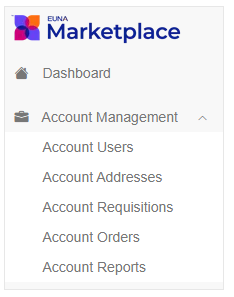
The Account Management Menu consists of 5 categories, Account Users, Account Addresses, Account requisitions, Account Orders, Account reports. (Please Note: Account Addresses is not covered as it is not utilized for school purposes)
You can view each category by clicking on the links in the top left of the “Account Management” admin tool like in the image below.
Account Users
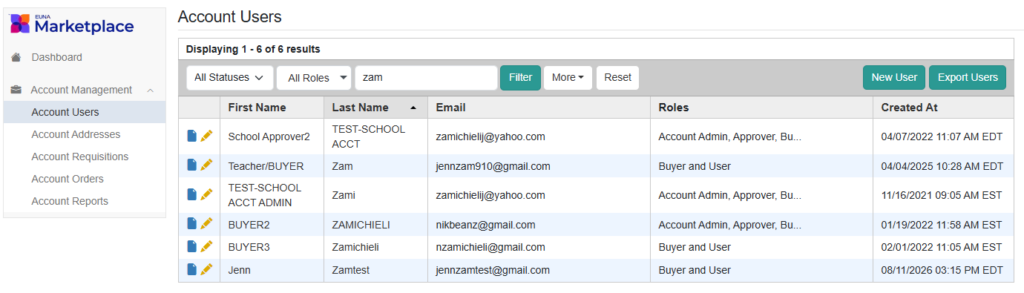
This user table includes all user accounts created for the school by methods of manual creation or registration. The Users table displays a select number of fields for each user, including their First and Last Name, Username, Email Address, and Roles.
- The filter function allows you to filter items relevant to your search terms in the search bar.

- The search terms can include the Status drop-down filter, the Roles drop-down filter, and/or the search bar for inputting text.


- Click the “Filter” button to display the related Users that you are searching for in the table. The search term must match a part or the entire field name of an individual field in the table (First Name, Last Name, Username, or Email). For example: you can type “Jo” into the text field and all results involving “jo” will appear in the table results.
- You can also sort the table results by clicking on the individual column names, which will alphabetize the column you select from A-Z upon the first click and Z-A upon the second click.
- The New User button allows the creation of a new user. We would prefer that this is not Utilized by the school and if a new user needs to be created to please reach out to the ISS rep.

- The Export Users button allows the “Users Table” to be exported to the Exports admin tool in a .csv file format. This is useful if you want to take note of the current users who can use the marketplace for your school.

- The view and modify icon allow you to view the details of the specific user.

- The edit icon allows you to edit the details of a user including the Username, Email, First/Last Name, Phone, Password, URL, and the enabled status. We would prefer that major changes not be made by the school and to reach out to the ISS rep for help.

Account Requisitions
The Admin Requisitions Table displays all of the requisitions that have been submitted in the marketplace for the school, regardless of whether or not they need approval. Each entry in the table corresponds to one shopping cart submission from within the marketplace.
To view this table, navigate to the “Account Requisitions” link in the “Account Management section of the admin menu. IMPORTANT NOTE: This access is not to be confused with the Requisition Tab on the top right of the marketplace. Requisitions found there are only requisitions entered or sent to you for approval.
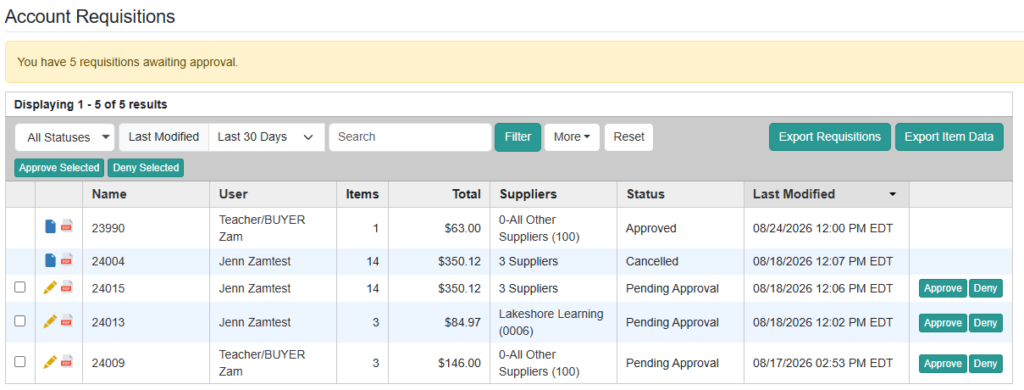
- Filter: The filter function allows you to filter the table results based on your specifications. There are four options to utilize for filtering table results:
- Status: The top left drop-down menu of the table allows for the filtering of requisition statuses. The Created status filters for requisitions that have been created but are not yet pending for approval. The Pending status filters for requisitions that are pending approval. The Approved status filters for requisitions that have already been approved. The Denied status filters for requisitions that were denied by an approver. The Cancelled status filters for requisitions that were cancelled by the creator of the requisition.
- Last Modified: The Last Modified drop-down menu allows for filtering the table for requisitions that have been modified within a certain time frame. A “Custom Range” option is available in order to filter requisitions modified between specified dates.
- Text: The text filter next to the filter button allows you to search for requisitions by Requisition Name, User (First Name, Last Name, or both), Username, Contract Name, Contract Number, Item Name, Item Supplier Part #, and Comments.
- Column Titles: You can sort the table results by clicking on the individual column names, which will alphabetize the column you select from A-Z upon the first click and Z-A upon the second click, or highest to lowest if the column involves values.
- Export Requisitions: The Export Requisitions button allows the table as it currently stands to be exported to the “Exports” admin table. The requisition export will break down the requisition by each vendor in addition to including the details in the table.
Account Orders
The Orders tool allows you to view all of the orders created from within the marketplace for your school. The order is used for providing the information needed by the supplier to complete the sale of items within a requisition created by a buyer. This is created once all approvals are complete, and the ISS rep approves the final approval on a requisition.
(The ISS representative is responsible for submitting the requisition and creating the order to the supplier). There will be one order created per supplier involved in the requisition submission.
To view this table, navigate to the “Account Orders” link in the “Account Management” section of the admin menu.
The Orders Table displays the entire list of Orders created from the marketplace for your school. These orders can be filtered and organized when using the table to acquire the results you are interested in viewing.
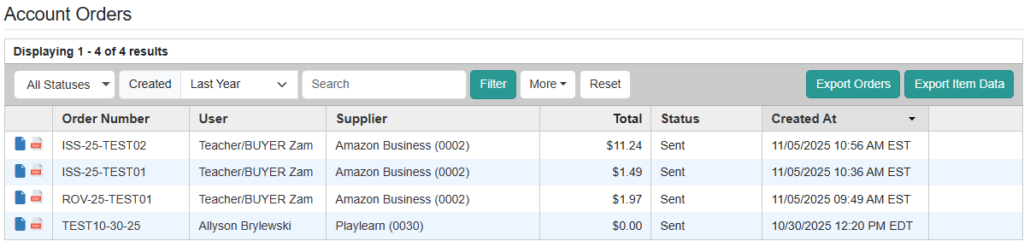
The filter function allows you to filter the table results based on your specifications. There are four options to utilize for filtering table results:
- All Statuses: The top left drop-down menu of the table allows for the filtering of requisition statuses. The“Sending” status filters for orders that have the Sending status. The “Sent” status means that the order has sent successfully to the supplier. The “Failed” status filters for “Failed” status orders. The “Cancelled” status means that the order was marked cancelled by the ISS Rep.
- Created: The Created drop-down menu allows for filtering the table for orders that were created within a certain time frame. A “Custom Range” option is available in order to filter for orders created between specified dates.
- Search Text Box: The text filter next to the filter button allows you to search for orders by Order Number, User (First Name, Last Name, or both), Contract Name, Contract Number, Item Name, Item Supplier Part #, and Comments.
- Column Titles: You can sort the table results by clicking on the individual column names, which will alphabetize the column you select from A-Z upon the first click and Z-A upon the second click, or highest to lowest if the column involves values.
- Export Orders: This button allows the table as it currently stands to be exported to the “Exports” admin table. There is also an option to export the item data of the orders in the table
- To view the details of a requisition, click

- To download a PDF version of the current order, select the

Account Reports
The Reports admin tool is used for viewing the order transactions created by buyers and approved by an ISS representative. The reports tool is helpful for comparing how much the buyers of the school have spent by supplier.
To view this table, navigate to the “Account Reports” link in the “Account Management” section of the admin menu.
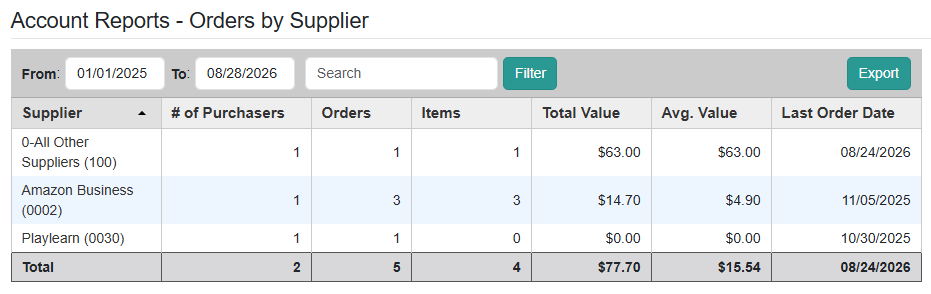
The filter function allows you to filter the table results based on your specifications. There are two options to utilize for filtering table results:
- Date: The date filter filters the table for all contracts based on the dates included within the From and To boxes.
- Column Titles: You can sort the table results by clicking on the individual column names, which will alphabetize the column you select from A-Z upon the first click and Z-A upon the second click, or highest to lowest if the column involves values.
- Export: button will download a .csv file of the filtered table.
- Supplier: column displays the contracts listed in the table. These Suppliers can be clicked on individually to view the contract details.
- # of Purchasers: column displays the number of shoppers who purchased items from contracts involved in the business group.
- Orders: column displays the number of orders submitted to the contracts.
- Items: column displays the number of items purchased by users within the business group.
- Total Value: column displays the total amount of money used to purchase the items.
- Avg.Value: column displays the average price of the purchases made for the contracts.
- Last Order Date: column displays when the last order was made for the contracts.